User Productivity Detail Report
The User Productivity Detail Report is a valuable reporting tool within our product that allows users to view a user's productivity for a specific project and subtype. This comprehensive documentation explains how to effectively utilize the User Productivity Detail Report to gain insights into a user's document processing time at various stages.
Key Features of the User Productivity Detail Report
The User Productivity Detail Report encompasses the following key features:
User-Specific Productivity Insights: Users can view detailed productivity metrics for a particular user within a specific project and subtype.
Document Processing Time: The report provides information about the time spent by the user on each document at various stages of the processing workflow.
Accessing User Productivity Detail Report
To access the User Productivity Detail Report page, follow these steps:
-
In the main menu, under Document Monitoring, click User Productivity Detailed. The User Productivity Detail Report page opens.
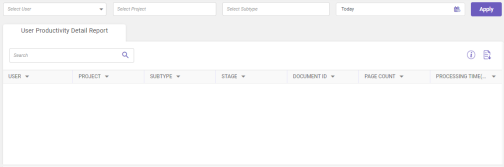
Column header descriptions
COLUMN NAME
DESCRIPTION
User
Displays the name of the user.
Project
Displays the project name.
Subtype
Displays the document subtype name.
Stage
Displays the stage name.
Document ID
Displays the document id.
Page Count
Displays the document page count.
Processing Time (Sec)
Displays the processing time taken by the user in seconds.
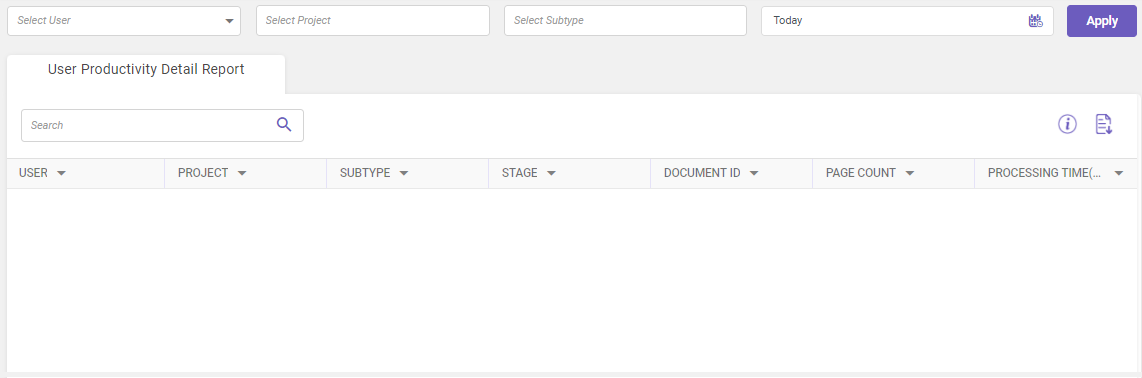
You can also view the column descriptions by clicking the Column Description  icon.
-
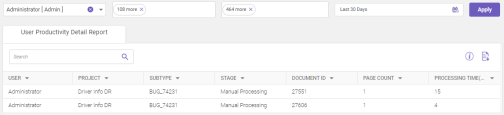
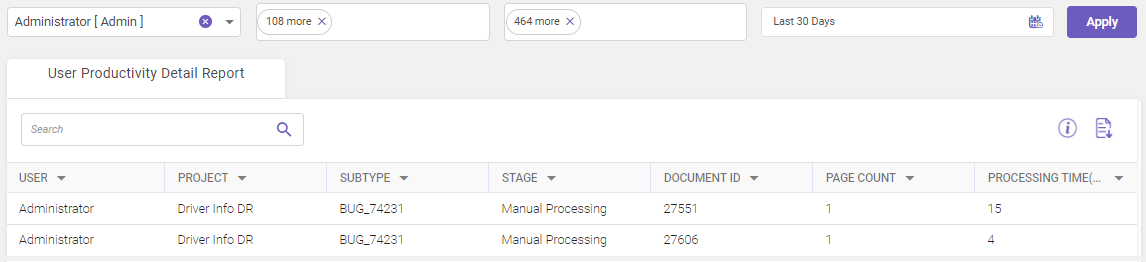
Select the user, project, and subtype from the drop-down to view the records for a pre-defined duration or use the
 icon to specify the required duration and then click Apply.
Note:
It is mandatory to select User, Project and Subtype to display the records.
All records matching the given criteria are displayed in the grid. Utilize the Search field to filter and find specific records within the displayed grid (Refer searching data).
-
Click
 to download the displayed data.